Uploading Documents
You can upload documents from the Shipwell interface or through the API. At upload time, choose whether to store the file only or start a processing run.
Upload in Shipwell
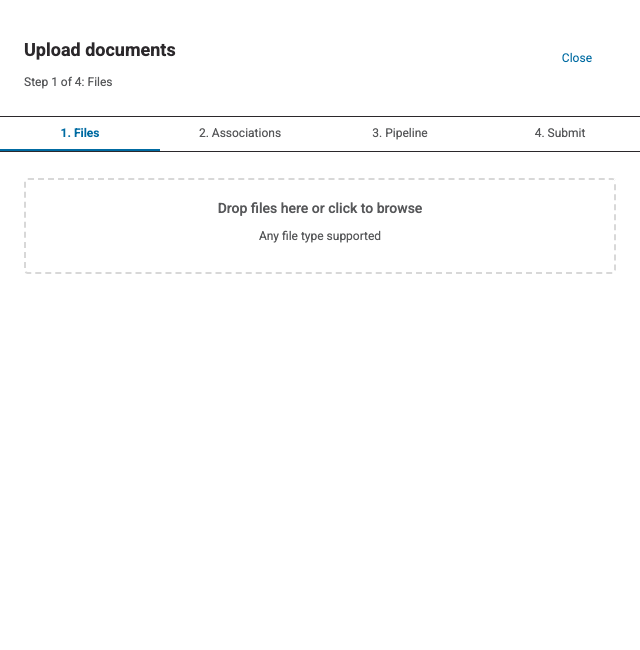
- Open Document AI .
- Select Upload documents .
- Add one or more files.
- Optionally associate the files with a Shipwell resource.
-
Choose an upload behavior:
- Upload only stores the documents without processing them.
- Use custom processing settings applies settings for this upload only.
- A named configuration applies a saved platform-managed or tenant-owned configuration.
- Review the files and submit the upload.
Associate documents with other resources
Associations make a document easier to find from another business object. Each association contains:
-
entity_type— the type of related resource, such asshipmentororder -
entity_id— the identifier of the related resource
An upload cannot contain the same entity_type and entity_id pair more than once.
Upload through the API
The API supports three upload patterns:
- Multipart upload for one or more files
- Base64 JSON for one file
- A two-step direct upload for large files
Multipart upload
Send up to 20 files in one multipart/form-data request. The payload form field is a JSON string.
curl -X POST "https://sandbox-api.shipwell.com/document-store/documents" \
  -H "Authorization: Token <user-token>" \
  -F 'payload={
    "processing_config_id": "<processing-config-id>",
    "files": [{"filename": "bol.pdf"}]
  }' \
-F "files=@bol.pdf"import json
import requests
with open("bol.pdf", "rb") as document_file:
response = requests.post(
"https://sandbox-api.shipwell.com/document-store/documents",
headers={"Authorization": "Token <user-token>"},
data={"payload": json.dumps({
"processing_config_id": "<processing-config-id>",
"files": [{"filename": "bol.pdf"}],
})},
files={"files": ("bol.pdf", document_file, "application/pdf")},
timeout=60,
)
response.raise_for_status()
upload = response.json()The response contains:
-
upload_batch_id— a correlation identifier for the upload request -
documents— accepted documents -
skipped— files that were stored but were not eligible for processing
When processing is requested, each accepted document includes its newly created run in latest_run.
Base64 JSON upload
Use base64 JSON when your client cannot send multipart data:
Send filename, content_base64, and content_type as JSON to POST /document-store/documents.
This format accepts one file per request and returns one document.
Direct upload
For clients that should upload bytes directly, use a two-step flow.
Request an upload URL, upload the bytes, and commit the document:
-
Request an upload URL with
POST /document-store/documents/presigned-uploads. -
Upload the bytes to the returned
upload_url. -
Commit the document with
POST /document-store/documents/{id}:commit.
The prepare response contains upload_url, object_key, document_id, and expires_in. Upload URLs are valid for five minutes. Send the same Content-Type when uploading bytes.
The upload URL is temporary. Treat it as sensitive and do not log or share it.
Choose processing behavior
For every upload method:
-
Provide
processing_config_idto use a saved configuration. -
Provide
pipeline_configto use one-time custom settings. - Omit both fields to store the file without processing.
- Do not provide both fields in the same request.
See Choosing a Configuration before using inline pipeline_config.
File eligibility
Allowed file types and limits can vary by account and MIME type. Retrieve the current catalog before validating uploads in your application:
Use GET /document-store/configs/upload-file-types.
See Errors and Limits for the meaning of storage and processing limits.